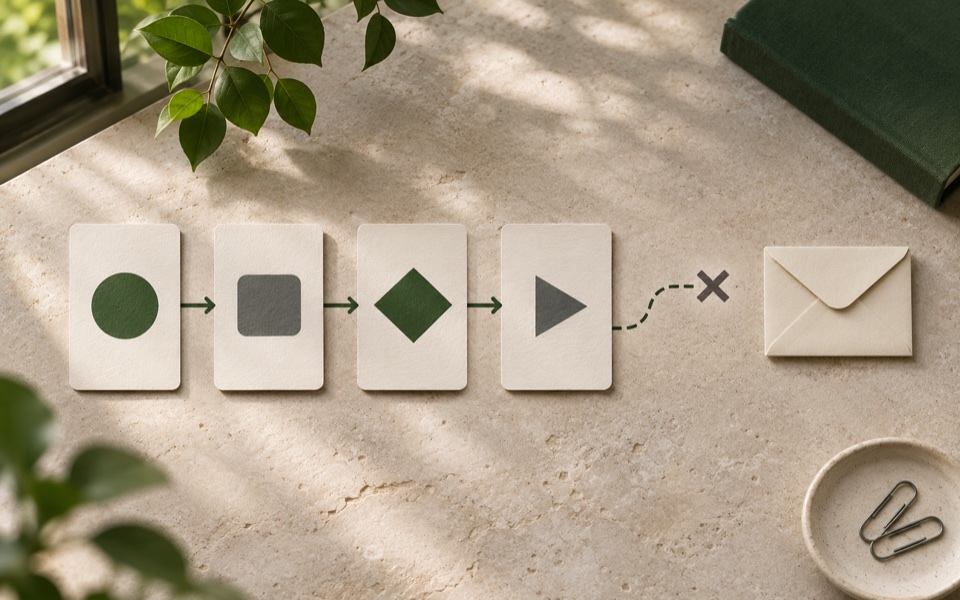
Sharing the Apps Script project gives someone the code. An installable trigger created by your old account may keep running with that account's authorization. If the old owner later loses access, the failure can arrive well after everyone thinks the move is complete.
Apps Script's trigger documentation explains that installable triggers run under their creator and that one account cannot see triggers installed by another. Start by asking the old owner to inventory what they installed. Record each function, event type, target spreadsheet or form, and the account expected to authorize it. If the target owner is a team, record which account has operating responsibility.
Rehearse using the new identity
Put a test copy of the script and target files under appropriate ownership. Google's Apps Script best practices explains why shared drives may help retain group ownership of a script project. Confirm any constraints for your account and the project before moving it. An organizational drive can keep the script available while a trigger still depends on a specific account.
Have the new responsible account open the test project, authorize what it uses, and create a trigger for the correct source. Test with an authorized real event in the copy, such as submitting the test form through its UI. Scripted submissions and API requests generally do not fire installable triggers, as Google documents. Inspect the resulting row or message and where an error notice would be seen.
Account for the events at the boundary
Choose a short window and note the last event the old trigger handled. Disable it under the old creator account before enabling a new trigger configured for the production target. Continue collecting source submissions, with a stable key or timestamp plus another identifier, so you can check the gap. If another team controls the intake, arrange the pause or verification with them.
Check who receives a trigger's failure notification after the switch. Use a disposable test target and a deliberately rejected record. Confirm the new responsible account can see the result and return the system to its ordinary settings.
After the new trigger has processed a harmless test event and the expected real events begin arriving, compare the source records with output for the cutover window. Backfill missing items through a controlled route that checks for prior writes.
Record what the old account can see
Have the old creator list their triggers while both accounts still have access. For each one, include its project, function, event source and the files or external services it writes to. Mark whether the destination is in a personal folder, a team drive or another organisation. A second owner can inspect the code and still miss a trigger installed by the original owner. Ask the creator to confirm the list in their own account.
Pick a small example with a submission from a shared request form. The old account's trigger writes a row to an intake sheet and uses another account-specific credential to send a confirmation. The new operator might have edit access to the script and spreadsheet while lacking permission to use the required destination. Test those permissions in the rehearsal instead of authorizing the production project and assuming all connected services will work. If the workflow has a timed trigger, record the intended time zone and when the first run is expected.
| Item in the inventory | What the incoming operator verifies |
|---|---|
| Script project and target files | Opens each one from the new account and checks access to the specific tab or folder |
| Trigger type and function | Creates the same type in the test copy and submits a real test event |
| Destination access | Writes to a harmless target using the intended authorization |
| Failure handling | Finds execution records or receives the expected notification for a test failure |
| Event key | Can match a source submission to an output without relying on a name |
Define the cutover window before touching triggers
Choose an interval in which a few manually reviewed events are acceptable. Save the last event key observed under the old trigger. Have its creator remove it or disable its effect through the process agreed by the team. Configure the replacement once under the new responsible account, then note the time it first accepts a test event. Keep source intake available if your readers rely on it and the raw records can be reconciled. If intake is paused, state when it will reopen and who will confirm that it did.
Compare source requests around the boundary, including several before and after the time you recorded. Event timestamps may be close enough that clock times alone are insufficient to locate the matching row. Use a key the workflow keeps across a retry. If a separate issue causes two triggers to overlap, disable the extra one and look for duplicate outputs and any side effects already sent. Use the duplicate record test before backfilling those events. Avoid changing old output until the new owner understands which record downstream systems are using.
Test what you would do if the first event fails
In the test project, remove the new account's right to write a harmless destination or use a bad test value that the workflow rejects. Look for the failure record from the account expected to handle it. Fix the cause in the test copy and replay only the part that is safe to repeat. Confirm that the repair leaves the same request key in the destination. This is also a useful moment to check which downstream connections rely on the old account even after the trigger has moved.
When the production route is in use, check it again at the next normal event or scheduled run. The handoff record can point to the run history, list the next owner and show the event keys reconciled at the transition. Preserve that record near the script so a different teammate can use it during an incident. If the new owner changes their role later, bring the same inventory to the next handoff.
For a timed job, wait for a run in the normal window as well as exercising a manual test. The incoming owner can check the logged time and confirm that the next real output has the date they expected. Record which monitoring view they used so a second operator can confirm it on a day they are away.